
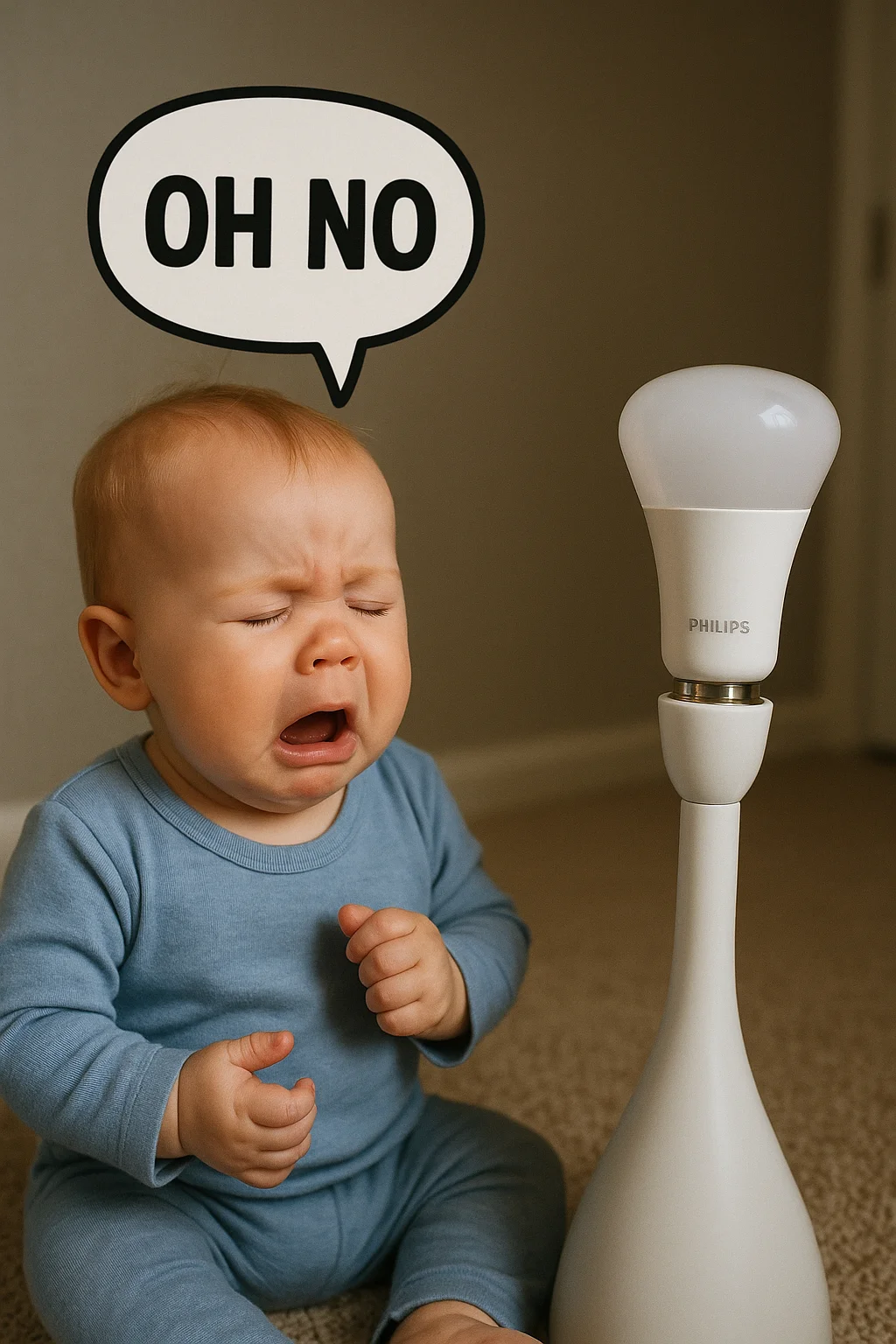
How to use Philips Smart Wi-Fi LED bulb Guide for Normal Humans (Not Tech Geniuses)
How to use Philips Smart Wi-Fi LED bulb I get it. You bought these fancy Philips smart bulbs, imagining how cool it would be to control your lights with your voice or phone. Then reality hit when you couldn’t even get the damn thing to connect to Wi-Fi. Been there, screamed at that. Let’s walk through this together like friends.
Table of Contents
Getting Started: What You Need to Know in how to use Philips Smart Wi-Fi LED bulb

First things first – there are two main types of Philips smart bulbs
- Philips Hue – The fancy ones that need a little bridge box (How to use Philips Smart Wi-Fi LED bulb)
- WiZ – The simpler ones that connect straight to Wi-Fi
Pro tip: (In these How to use Philips Smart Wi-Fi LED Bulbs) Check your bulb’s box or base—it’ll say which type you have. This matters because they use different apps.
The Setup That Works (I Promise) in these How to use Philips Smart Wi-Fi LED bulb post
When it doesn’t work (because sometimes it won’t):
Say “Alexa, discover.” this often works when the app fails
- Screw it in properly – I know this seems obvious, but you’d be surprised how many “smart” problems are solved by checking the basics first.
- Download the RIGHT app:
- Hue bulbs → Philips Hue app
- WiZ bulbs → WiZ Connected app
(Getting this wrong is like trying to open a PDF in Excel – it just won’t work.)
- WiFi matters more than you think.
- These bulbs ONLY work with 2.4GHz networks (not 5GHz)
- If you’re not sure which you’re on, check your router settings
- Stand close to your router during setup – these bulbs have wimpy antennas
- Naming your bulbs:
- Be more creative than “Light 1″—you’ll” thank yourself later
- “Kitchen Overhead” is better than “That One That Never Works.”
Voice Control: Because Yelling at Lights is Fun (How to use Philips Smart Wi-Fi LED bulb)
Alexa Compatibility (Yes, It Works) How to use Philips Smart Wi-Fi LED bulb
- Open Alexa app → Devices → +
- Select “Light” → Choose Philips Hue or WiZ
- Log in when prompted
Try saying, “Alexa, set the bedroom lights to 30% warm white.”
Check if you accidentally turned off the physical switch (we’ve all done it) How to use Philips Smart Wi-Fi LED bulb
Google Home Users Aren’t Left Out How to use Philips Smart Wi-Fi LED bulb
- Open Google Home app → + → Set up device
- Tap “Works with Google.”
- Search for Philips Hue or WiZ
- Log in and sync

Cool trick: Create routines like “Hey Google, movie time” to dim the lights automatically
When Things Go Wrong (Because They Will)
The Magical Reset Ritual
For Hue bulbs:
- Turn on for 5 seconds
- Turn off for 5 seconds
- Repeat this 4 more times (yes, really)
- When it blinks, it’s reset
For WiZ bulbs:
- Flip the switch on/off 3 times
- Wait for the flash – now it’s back to factory settings
Why this matters: This fixes about 80% of problems. The other 20% require whiskey.
Common Problems and Real Solutions
- “It says connected, but nothing happens!”
- Check if you have multiple WiFi networks with similar names
- Restart your phone (seriously, this works more often than it should)
- “The app can’t find my bulb!”
- Make sure Bluetooth is on during initial setup
- Try turning other electronics off temporarily
- “Voice commands stopped working!”
- Re-link your Philips account in Alexa/Google Home
- Check if your bulbs got “orphaned” in the app
Long-Term Use: What the Box Doesn’t Tell You
How Long Do These Bulbs Last
- Hue bulbs: 15,000-25,000 hours (about 15 years at 4 hours/day)
- WiZ bulbs: 10,000-15,000 hours (about 10 years)
Reality check:
Heat kills them faster – avoid enclosed fixtures
Power surges can fry them instantly (consider a surge protector)
The more you change colors/brightness, the shorter their lifespan
Cool Features You Might Not Know About
- Circadian lighting: Automatically adjusts from cool to warm light throughout the day
- Vacation mode: Randomly turns lights on/off to make it look like someone’s home
- Energy monitoring: See exactly how much power you’re saving
- Scene creation: Save custom lighting combos for different moods
Pro Tips from Someone Who’s Made All the Mistakes
- Buy one extra bulb – When one dies at midnight, you’ll be glad you did
- Use power strips – Smart bulbs hate being hard switched off
- Label everything.” Bedside lamp” is better than “Light 7.”
- Update firmware – Boring but prevents weird glitches
- Try different positions – Some bulbs work better facing up vs down
Final Verdict: Worth the Hassle?

After all this, is it worth it? In my opinion, absolutely. Once you get past the initial setup headache:
- Never stumble to find a light switch again
- Create perfect lighting for any activity or mood
- Save energy with smart scheduling
- Impress your friends with color-changing magic
The key is patience during setup. These bulbs are like stubborn pets – frustrating at first, but wonderful once trained.
Still having trouble? Drop a comment below -I’ve probably solved your exact issue three times already!
